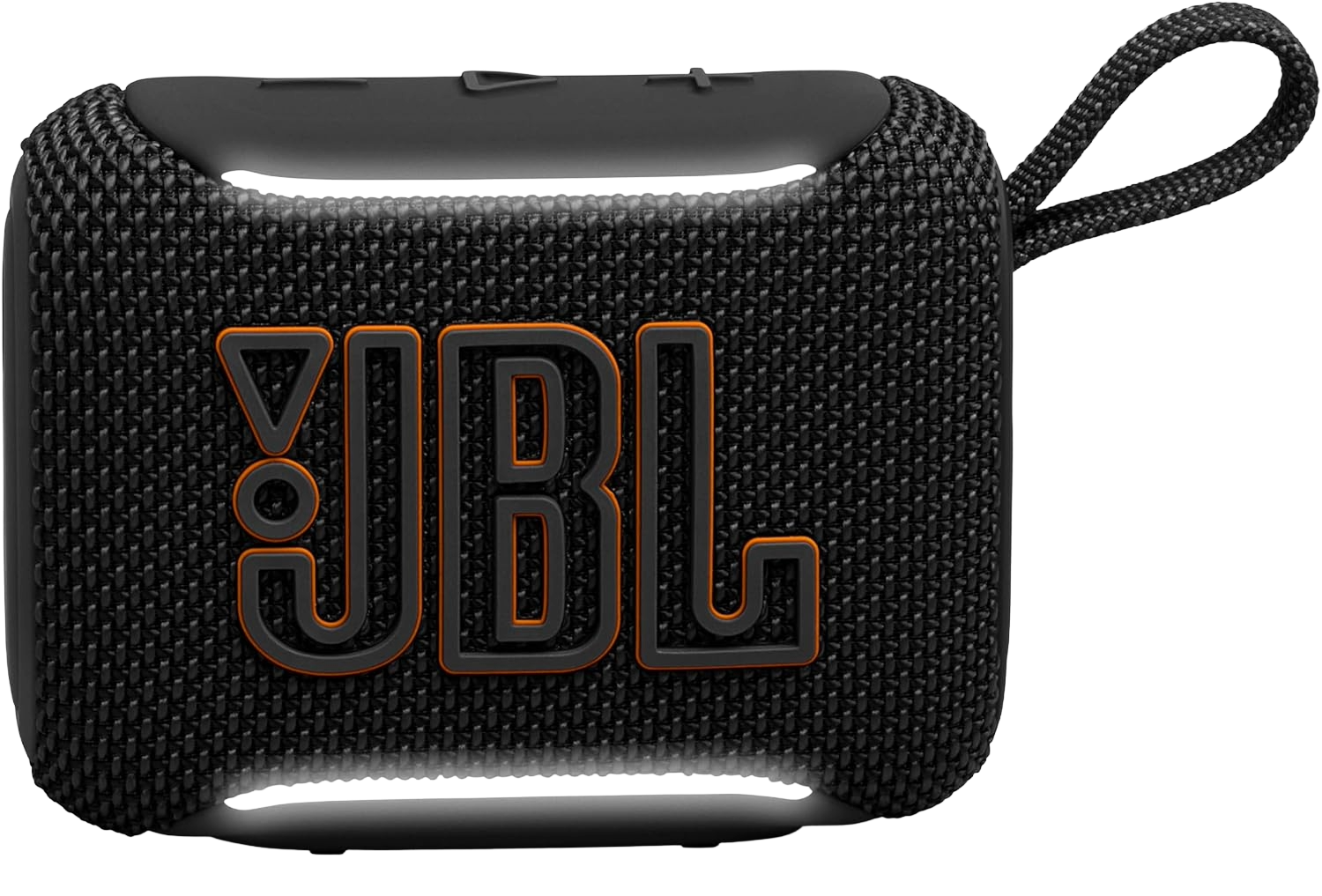
Your song is playing, then it stutters, drops for half a second, and comes back. A few minutes later it happens again. A Bluetooth speaker that keeps cutting out is one of the most common audio complaints on r/techsupport and Microsoft's own support forums, and the cause is almost always the same handful of things. Here's how to stop the dropouts for good, starting with the fixes that cost nothing.

How to Stop Your Bluetooth Speaker From Cutting Out
Work through these in order. Most speakers are fixed by step three.
- Close the gap and clear the path. Bluetooth is rated for about 30 feet, but that assumes open air. Walls, furniture, and even your own body cut the range hard. Put the speaker and your phone or laptop in the same room with a clear line of sight, ideally within 10 to 15 feet, and see if the stutter stops.
- Move away from a microwave and other radios. Bluetooth runs on the 2.4 GHz band, the same crowded frequency used by microwaves, older cordless phones, baby monitors, and cheap USB 3.0 cables. A running microwave will chop your audio to pieces. Step away from these while you test.
- Switch your Wi-Fi to the 5 GHz band. This is the big one. Your 2.4 GHz Wi-Fi and your Bluetooth speaker fight over the same airspace, which is why audio often stutters worst while you're streaming. In your router settings, connect your phone or laptop to the 5 GHz network (it usually has "5G" in the name). The two signals stop overlapping and the dropouts usually vanish.
- Turn off audio enhancements (Windows). On a PC, right-click the speaker icon, open Sound settings, click your Bluetooth speaker, and disable any "audio enhancements" or "spatial sound" processing. This extra processing adds delay that can surface as stutter.
- Forget the device and re-pair it. A corrupted pairing causes constant micro-dropouts. Remove the speaker from your Bluetooth list, restart both devices, and pair fresh. This clears a surprising number of stubborn cases.
Why This Works
Almost every Bluetooth dropout comes down to one word: interference. The 2.4 GHz band is a shared, unlicensed frequency, so your speaker is competing with your router, your neighbor's router, and half the wireless gadgets in your home. When the signal has to fight through walls or a busy channel, the speaker's buffer runs dry and you hear a gap. Moving closer, clearing the 2.4 GHz airspace, and pushing your Wi-Fi to 5 GHz all give the audio a clean lane to travel in.

If That Didn't Work
Still cutting out? Try these next, cheapest first.
- Update your Bluetooth driver (Windows). Open Device Manager, expand Bluetooth, right-click your adapter, and choose Update driver. Outdated or corrupt drivers are a frequent cause of stutter that no amount of moving around will fix. If an update doesn't help, uninstall the adapter and restart to let Windows reinstall it clean.
- Disable Wi-Fi and Bluetooth coexistence. Some laptop Wi-Fi adapters have a hidden setting that lets Wi-Fi and Bluetooth share the radio, and it can backfire. In Device Manager, open your Wi-Fi adapter's Properties, go to the Advanced tab, and look for "Bluetooth Collaboration" or a similar coexistence option. Toggling it off resolves choppy audio for many users on Microsoft's forums.
- Test with a second phone. Pair the speaker to a different phone for a few minutes. If it plays perfectly there, the problem is your original device's Bluetooth or drivers, not the speaker. If it stutters everywhere, the speaker's radio may be failing and it's worth a warranty claim.
Pro Tips to Stop It Coming Back
- Keep your router off the floor and away from the speaker's usual spot. A router tucked behind a TV or under a desk broadcasts a weaker, messier 2.4 GHz signal that interferes more.
- Buy a speaker with a newer Bluetooth version if dropouts are chronic. Bluetooth 5.3 and later hold connections far better in crowded homes than the 4.x radios in budget speakers. Our JBL Go 5 review covers a small, current-generation speaker that connects reliably for everyday use.
- Don't stream over 2.4 GHz Wi-Fi and Bluetooth at the same time if you can avoid it. On phones, keeping your data or 5 GHz Wi-Fi active for the stream and letting Bluetooth handle only the audio keeps the two signals from stepping on each other.
Most Bluetooth dropouts are an interference problem, not a broken speaker. Clear the airspace, get on 5 GHz Wi-Fi, and re-pair, and your music should stay locked in.