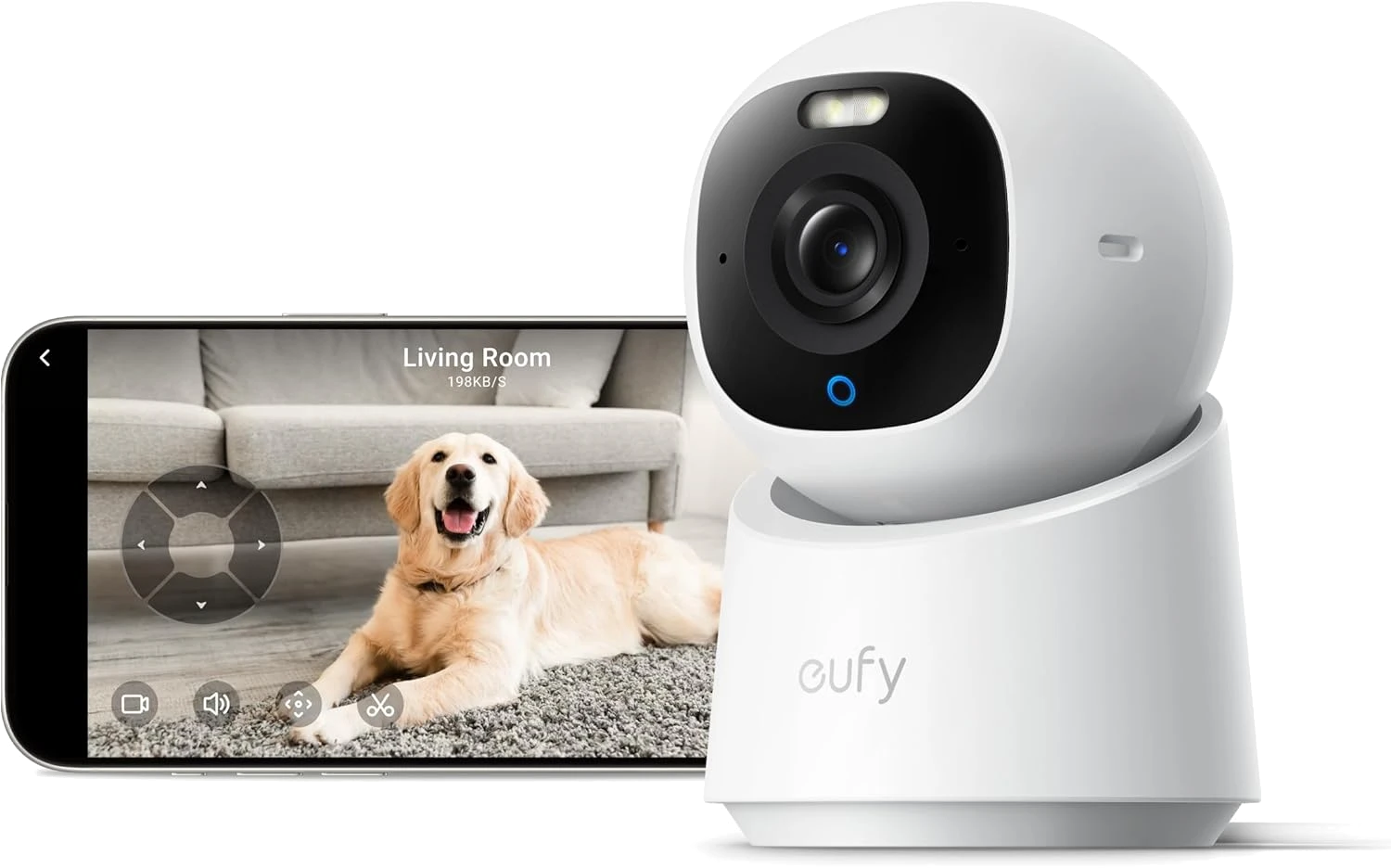
Your camera worked fine for weeks, then it started dropping off the app for no reason. You reboot it, it comes back, and a day later it's offline again. Nine times out of ten this isn't a broken camera. It's your router shoving the camera onto a Wi-Fi band it can't hold. Here's how to fix it for good.
Fix a Security Camera That Keeps Going Offline
Most Wi-Fi security cameras connect only to the 2.4GHz band, because 2.4GHz reaches farther through walls than 5GHz. Modern routers try to be helpful with "band steering" (also called Smart Connect), which merges both bands into one network name and automatically pushes devices toward 5GHz. Your camera gets shoved onto a band it can't use, drops, reconnects on 2.4GHz, then gets shoved again. That loop is what you see as the camera going offline.

The fix is to give the camera a stable 2.4GHz connection it won't get bounced off:
- Open your router's admin page. Type the router's IP (often
192.168.1.1or192.168.0.1) into a browser, or use your router's phone app. - Find the wireless settings. Look for a section named Wi-Fi, Wireless, or Network, then find "Band Steering," "Smart Connect," or "Dual-Band."
- Split the bands. Turn off band steering / Smart Connect. Your router will now broadcast two separate names, one ending in something like "2.4G" and one in "5G." If your router won't let you disable steering, create a separate 2.4GHz only guest network instead.
- Name the 2.4GHz network something you'll recognize, like
Home_2G. Give it its own password. - Reconnect the camera. In the camera's app, remove the device or run Wi-Fi setup again, and this time pick the 2.4GHz network. During setup, your phone should be on the same 2.4GHz network so the pairing hands off cleanly.
- Lock the channel. In the 2.4GHz settings, set the channel manually to 1, 6, or 11 (whichever your router's Wi-Fi analyzer shows as least crowded) instead of "Auto."
Give it a full day. A camera that used to drop every few hours should now stay put.

Why This Works
Band steering assumes every device can happily jump between 2.4GHz and 5GHz. Cameras and most smart-home gear can't. By handing the camera a dedicated 2.4GHz network with a fixed channel, you stop the router from ever trying to move it. The connection stops flapping, and the reconnect loop that showed up as "offline" disappears.

If That Didn't Work
Work through these in order, cheapest first.
- Check the signal strength. Open the camera's app and find Device Health or Network status, then look at the RSSI number. Anything worse than about -70 dBm means the signal is too weak, and the camera will drop even on a clean 2.4GHz network. Move the camera closer to the router, or put a mesh node or extender between them.
- Reserve the camera's IP address. In your router's DHCP settings, assign the camera a fixed (reserved) IP based on its MAC address. This stops the router from handing the camera a new address mid-session, which some cameras handle badly by dropping the connection.
- Update and power-cycle. Update the camera's firmware in its app, then unplug both the camera and the router for 30 seconds and power them back up. If the camera runs off a USB adapter, try a different 5V power brick. An underpowered supply causes random reboots that look exactly like Wi-Fi drops.
Pro Tips to Keep It From Happening Again
- Put all your smart-home gear on one 2.4GHz network. A dedicated IoT SSID (cameras, plugs, bulbs) keeps them off the band-steering merry-go-round and away from your phones and laptops. Set it once and forget it.
- Mind the walls. 2.4GHz is good, not magic. Every wall between the camera and the router costs signal. Two interior walls is a reasonable limit before you should add a mesh point.
- Pick a camera that records locally. A camera with onboard microSD or hub storage keeps recording even when the internet blips, so a momentary drop doesn't mean a gap in your footage. Our eufy Indoor Cam E30 review covers a subscription-free option that stores clips on the device itself.
This band-steering fix comes up again and again in r/HomeNetworking and camera support forums for a reason: it's almost always the router, not the camera. Split the bands, lock the channel, and your feed stays online.